Pick the route for your television.
- Supported Samsung, LG or another smart platform
- Use the TV's own app store or library. Support depends on the model and operating system, not just the brand logo.
- Vizio Home Screen or SmartCast
- Look in its available app library. Follow the current interface rather than searching for an Android APK installer.
- Older or unsupported smart TV
- Use a Disney+-supported streaming player, console or other supported HDMI source. The TV displays that device's output.
Install, sign in and play a title.
Identify the model and operating system
Check About This TV, Device Information or the rear label. Match the platform against Disney+'s supported-device guidance. A television having a web browser does not mean browser playback is supported. App availability also depends on the country and the TV's configured region.
Connect and update the television
Use the TV's network settings to confirm internet access. Install any available official system update, then return to its app store or library. For Samsung menus, see our software update guide. An update can resolve bugs but cannot guarantee support for an obsolete platform.
Find the official Disney+ app
Search Disney+ in the TV's app store or open it from the available apps. Select the official service, then install or add it as the platform permits. A remote shortcut may launch the app, but the printed button does not prove that an old model remains supported.
Follow the sign-in screen
Open Disney+ and choose the sign-in option. Use the QR code, activation address or account entry shown by the official app. Enter a displayed code only through that indicated service. Your TV-platform account and your Disney+ subscription are separate things.
Check playback before changing picture settings
Choose a familiar title and confirm video, audio and subtitles. If login works but playback fails, check the subscription, network and exact error message. For an unsupported television, set up a supported HDMI player and select its TV input before repeating the app sign-in there.
Find the symptom. Check the cause.
Disney+ is missing from search
Check the model, operating system, region and official supported-device list. Do not install files from an unrelated app-download website. A TV that lacks native support can still work as an HDMI display for a compatible player.
The activation code is rejected
Keep the TV sign-in screen open, check the code carefully and request a fresh code if it has expired. Use the address shown by the app. Avoid mixing an old code with a newly opened sign-in session.
Other apps work but Disney+ does not
Check Disney+'s service help and any error code, then restart the app and TV normally. An account or app-specific issue is different from a whole-network failure. Record the model and software version if support assistance is needed.
App availability and picture quality are separate checks.
Installing Disney+ does not establish that every title will play in 4K, HDR or a particular surround format. The subscription, title, app implementation, TV and any connected audio equipment must support the desired format. Start with reliable playback, then assess quality options.
For mobile playback on a larger screen, see phone-to-TV streaming. Supported casting methods can be useful, but they are not a universal workaround for every unsupported TV or subscription restriction.
Checks that make this work.
Check compatibility before reinstalling
Disney+ support depends on the TV platform, model and territory. Start with Disney+'s current supported-device list, then search the TV's official app store. A smart TV label does not guarantee every app is available. If the app is absent, check the TV model and software version before resetting the set. A supported external streaming device may be simpler than replacing a working television. LG's Disney+ support page illustrates how a maker lists compatible models and store steps.
Activate through the official route
Install the app from the TV platform's store and follow the sign-in or activation directions shown by Disney+. Check the address carefully when entering a code on a second device. If the app opens but playback fails, test the TV's network and another app to separate account from connection problems. Disney+'s TV activation guidance explains the official process. Do not enter account credentials into a third-party page that merely claims to help. If an app disappears after an update, review the provider and manufacturer support pages for the current model rather than relying on an older tutorial.
Model-aware instructions.
This guide is based on manufacturer and platform support material reviewed on November 4, 2026. We distinguish common steps from model-specific requirements and link relevant official guidance in the FAQs.
Menu names, app interfaces and supported features can change. Use the manual for your exact model when it differs from a general procedure. This is researched guidance, not a claim that we tested every television, app or accessory described.
A little more clarity.
Does every smart TV support Disney+?
No. Compatibility depends on the TV's operating system, model and region. Disney+'s supported-device list identifies the available platform routes. Check the specific platform's requirements rather than assuming all televisions from a listed brand qualify.
Can I use a streaming stick with an older TV?
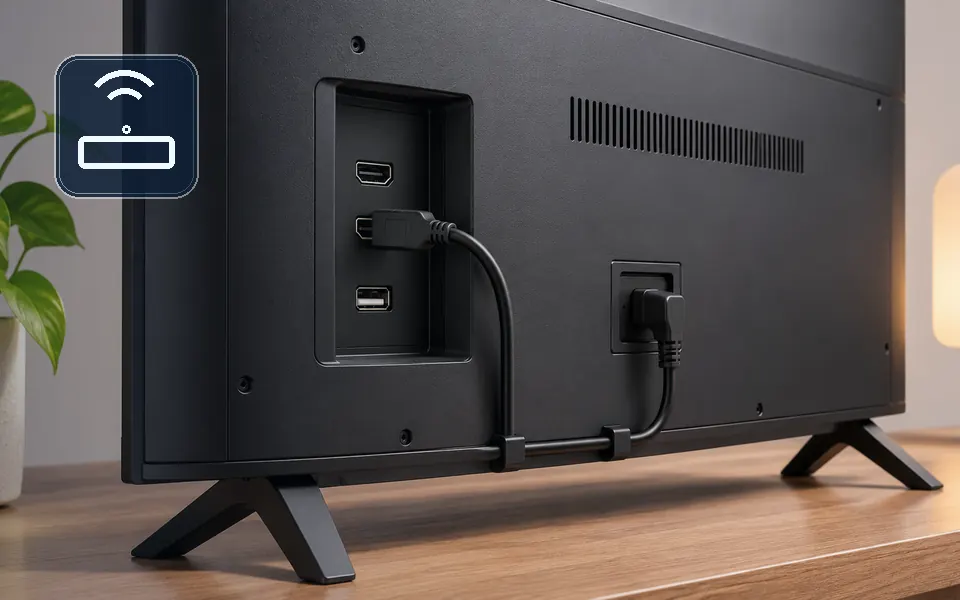
Yes, if the player supports Disney+ and the television accepts its HDMI output. The player handles the app and internet connection. Check the player's power requirements and supported display modes, then use the TV remote to select the connected HDMI input.
Is Disney+ free because it is installed on my TV?
The app being available does not include a paid subscription. Sign in with an eligible account and check the plan or bundle you actually have. A TV manufacturer's free channel service is separate from a Disney+ subscription.
Can I install Disney+ from a USB drive?
Do not assume the TV supports that method. Use its official app store or supported app library. A downloaded Android package will not make a Samsung Tizen, LG webOS or Vizio platform behave like an Android television.
Why does the remote have a Disney+ button but the app fails?
The shortcut only requests the service. Playback still depends on current app support, the TV software, internet access and your account. Check which stage fails, such as app launch, sign-in or video playback, before choosing a troubleshooting step.
Can I download Disney+ shows onto the TV?
Disney+ downloads are intended for supported mobile devices and eligible plans, not TV-connected devices. Use a supported phone or tablet for offline viewing and check the app's download rules. Our travel-app guide explains how to prepare before leaving home.
 Find apps on Vizio
 Prepare TV apps for travel
 Add streaming to an older TV