
Know which route your setup uses.
- Alexa built into the TV
- Set up Alexa on the compatible television. Some models use a microphone button, while hands-free wake is available only where the model supports it.
- Echo linked to Fire TV
- Link compatible Alexa and Fire TV devices registered to the same Amazon account. Commands operate supported Fire TV features and apps.
- Manufacturer service or skill
- Use the TV maker's supported integration, such as SmartThings for compatible Samsung setups. Available TV commands depend on the model and integration.
Build a small set of commands that works.
Confirm the exact model and control route
Check the TV's support information for built-in Alexa or a supported integration. If you use Fire TV, identify that device separately from the television. A TV can be compatible with a service without having a built-in microphone, and a voice remote may require holding its microphone button.
Complete the required account link
For built-in Alexa, follow the television's on-screen Amazon sign-in process. For Echo and Fire TV, use the Alexa app's Fire TV linking flow with both devices on the same Amazon account. For a manufacturer skill, authorize the correct account and discover the supported device. Review the devices that the link exposes.
Give the target a clear name
Use distinct names for multiple televisions and streamers, such as Living Room TV and Bedroom Fire TV. Check which device is linked to the Echo you use. If a command affects the wrong screen, inspect those assignments before repeatedly changing the wording.
Test playback and app commands first
Start with a supported app and a simple request such as Alexa, pause. On linked Fire TV, try opening an installed supported app or searching for a title. Add on Fire TV when the destination is ambiguous. App support, sign-in and subscriptions still govern what can play.
Test volume, power and input separately
Try a small volume change, then check power and input commands only if your model supports them. These functions can depend on the TV integration or compatible equipment-control features, not just the streaming app. Keep the remote available until each control you need has been verified.
Find the symptom. Check the cause.
Alexa responds, but the wrong TV changes
Check device names, linked Fire TV assignments and any room grouping. Give duplicate devices distinct names and confirm the intended target in the Alexa app. A clear destination is more useful than repeating the same command more loudly.
Playback works but power or volume fails
The streaming device and television may use different control paths. Confirm the TV's supported integration, standby wake setting and any required HDMI-CEC or equipment-control configuration. A successful app command does not establish support for every television function.
An app opens but a title will not play
Check that the app is supported for the requested voice action, installed and signed in. Confirm the title is available through your account and subscription. Alexa cannot supply access to content you do not have permission to watch.
Use voice controls that fit the household.
On compatible Samsung TVs, documented examples include opening apps, changing volume and switching to a named HDMI input. Linked Fire TV supports a different set of playback, search and navigation commands depending on the app. Treat command lists as examples to check on your setup rather than universal promises.
Review microphone and voice-wake settings if you prefer to speak only after pressing a remote button. Alexa's privacy settings let you review and manage voice history. Also review purchase controls and the accounts linked to shared household devices. These settings are separate from the television's picture or sound configuration.
Keep a physical remote or an already paired official phone remote app available for tasks that voice does not cover. If a Samsung TV is behaving inconsistently across all controls, use the restart and reset guide to troubleshoot before changing every linked service.
Checks that make this work.
Separate voice commands from TV compatibility
A TV can accept one Alexa command without supporting every control. Check the manufacturer feature list for the exact model and integration. Playback control through Fire TV is different from changing a broadcast channel on the TV's own tuner. Volume or power may depend on HDMI-CEC, network standby settings or an official skill. Test one command at a time and write down which device responds. If a feature is absent from the official support page, do not keep resetting accounts in the hope that discovery will add it. A physical remote remains a useful fallback.
Keep routines predictable
A routine can turn on a TV or select a supported device, but test it while someone else is present before making it part of a household schedule. Give devices distinct names and review which account is linked. If Alexa controls the wrong television, change the room group or name instead of adding a second copy of the device. Samsung's Alexa guidance, Samsung's voice-assistant page and Amazon's device help describe different routes. Use the one that matches your equipment, and review account access when the TV is sold or replaced.
Model-aware instructions.
This guide is based on manufacturer and platform support material reviewed on November 4, 2026. We distinguish common steps from model-specific requirements and link relevant official guidance in the FAQs.
Menu names, app interfaces and supported features can change. Use the manual for your exact model when it differs from a general procedure. This is researched guidance, not a claim that we tested every television, app or accessory described.
A little more clarity.
Do I need an Echo speaker to use Alexa on a TV?
Not always. A compatible TV with Alexa built in can use its supported remote microphone or hands-free feature. An Echo is a separate control route. Samsung's Alexa TV guide explains its supported setup and model-dependent voice-wake options.
Can an Echo control my Fire TV?
Compatible Alexa devices can control supported Fire TV features after linking. Amazon requires the devices to be registered to the same account and recommends current software and app versions. Its Fire TV voice-control guide lists supported command categories and important limitations.
Why can Alexa pause a show but not change the volume?
Playback and television volume may be handled by different devices or integrations. The app can accept pause while the TV lacks a working volume-control route. Check the exact TV, audio system and equipment-control configuration rather than assuming that all commands use the same connection.
Can Alexa turn on any television?
No. The television needs a supported control route and an appropriate standby configuration. A fully disconnected TV cannot receive a normal network wake command. Check the exact model's power-control support instead of assuming that adding an Echo makes every older television compatible.
Does a Samsung SmartThings link enable every Alexa command?
No. A successful account link makes compatible devices available through the integration, but supported commands still depend on the device. Follow Samsung's SmartThings and Alexa instructions, then test the specific TV controls you need before relying on them.
Can Alexa play any movie without a subscription?
No. The requested title must be available through a supported service and the account being used. Some content is free, while other titles require a subscription, rental or purchase. Check the service and any payment prompt instead of treating a successful voice search as viewing access.
 Set up a phone remote
 Troubleshoot Samsung controls
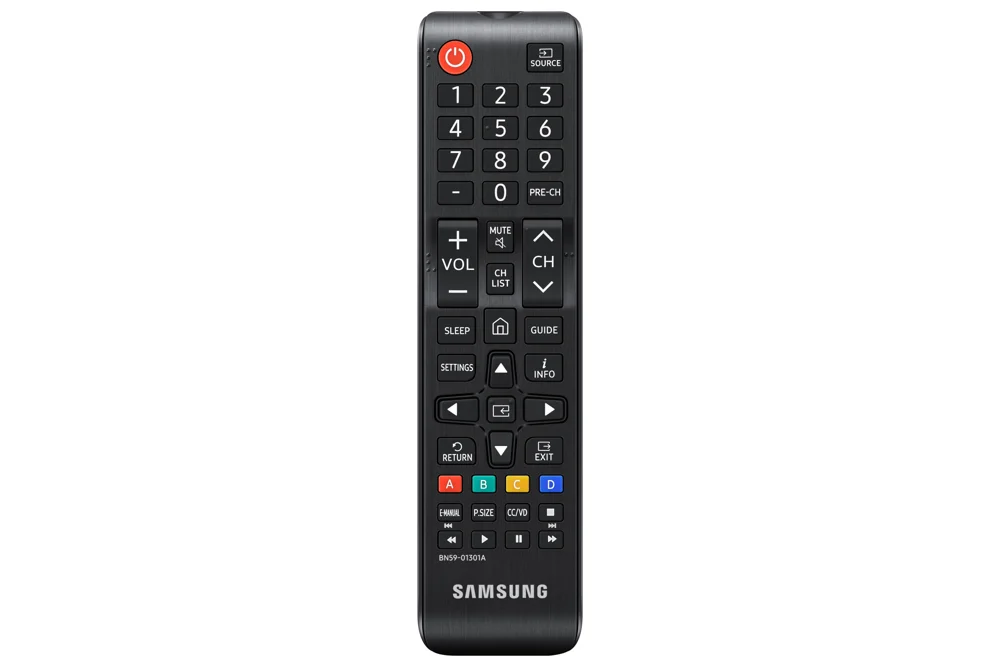 Compare Samsung remotes