
Choose the smallest useful reset.
- TV or menus temporarily sluggish
- Cold boot the TV, then test the same task again. A brief press of Power normally enters standby and is not the same restart.
- Apps or Smart Hub affected
- Check the connection and app updates first. Smart Hub reset removes its accounts, agreements and app information.
- A wider settings problem
- Record your settings and sign-in details before a factory reset. Use the route for your exact model and follow the confirmation prompts.
Work through the options in this order.
Cold boot before erasing settings
With the TV on, hold the Power button on the Samsung remote until the TV switches off and back on. Alternatively, unplug its power cord, wait 30 seconds and reconnect it. Do not interrupt a software update. Test the original problem again before moving to a reset.
Check what is actually failing
For one failing app, check that app and the TV software before resetting everything. For a picture or sound problem, use the relevant self-diagnosis test where available. If an external HDMI device is the only affected source, check that device and its connection as well.
Use Smart Hub reset for persistent app issues
On supported models, open Settings, Support, Device Care, Self Diagnosis, then Reset Smart Hub. Some models place Self Diagnosis directly under Support. Enter your PIN and follow the prompts. This removes Smart Hub account and app information, so have your sign-in details available first.
Use the model-specific factory reset menu
Exit streaming apps first. Samsung's common route is Settings, General & Privacy, Reset. On some models, use Settings, Support, Self Diagnosis, Reset instead. Enter the TV PIN, choose Reset and confirm OK. Menu names can differ, so use the model manual if neither route matches.
Let the TV restart and check the result
Allow the restart and complete the on-screen setup. Sign back into the services you use and restore any settings you recorded. Test the original fault before making many other changes. If it remains, record the model, software version and symptoms for support rather than repeating resets indefinitely.
Find the symptom. Check the cause.
Reset is unavailable or grayed out
Exit the current app and return to ordinary TV operation before trying again. Check the exact model's manual for the available reset location. Do not enter a hidden service menu to work around a missing control.
The PIN is rejected
0000 is Samsung's default PIN, but it will not work if the PIN was changed. Use the model's documented recovery process or Samsung support. Avoid trying undocumented button sequences that may alter service settings.
The internet still does not work
Run Network Status and check the router connection. Samsung's documented factory TV reset excludes network settings. A router or internet-provider fault can remain after a successful reset, so diagnose that connection separately.
Prepare for the reset you choose.
Record useful picture and sound settings, account names and any setup details you will need again. Keep passwords in your own secure records rather than a public troubleshooting message. A reset is easier to evaluate when you know the original symptom and can repeat the same check afterward.
If the remote is the obstacle, an already paired phone app may help, but a new pairing can require approval on the television. See our remote app guide for that distinction, or compare Samsung-compatible physical remotes by exact model.
Checks that make this work.
Choose the least disruptive reset
If an app is slow or the TV menu has become unresponsive, start with the restart or power-cycle method documented for your model. A full factory reset removes settings and may sign you out of apps, so it is a later step when a narrower fix has not worked. Record the Wi-Fi details, account access and picture settings you may need again. Do not perform a reset during a software update or while the TV is saving a change. The menu path and remote buttons vary by model and year, so use the exact support page or on-screen help when the labels differ.
Check what the reset changed
After a factory reset, reconnect the TV to the network, check for the current software version and sign in only to the services you use. Test the original symptom before restoring every customization. If the issue remains on one external device, check its cable and input separately rather than repeating resets. Samsung's troubleshooting page distinguishes restart and reset approaches, while its reset instructions provide model-aware menu guidance. Keep the support record and model number nearby if you need to contact Samsung after the test.
Model-aware instructions.
This guide is based on manufacturer and platform support material reviewed on November 4, 2026. We distinguish common steps from model-specific requirements and link relevant official guidance in the FAQs.
Menu names, app interfaces and supported features can change. Use the manual for your exact model when it differs from a general procedure. This is researched guidance, not a claim that we tested every television, app or accessory described.
A little more clarity.
Will a cold boot delete my apps or settings?
A cold boot restarts the television rather than restoring factory settings. Samsung documents holding the remote Power button until the TV turns off and on, or unplugging it for 30 seconds. Its cold-boot instructions explain the difference from ordinary standby.
What is the default Samsung TV reset PIN?
Samsung identifies 0000 as the default PIN. Use the PIN you set if it has been changed. If you no longer know it, consult the exact model's support instructions. Do not assume an internet button sequence is suitable for every remote and television generation.
Does a factory reset clear the Wi-Fi settings?
Samsung's US reset guide says that the TV factory reset restores settings excluding network settings. Do not rely on it as a network reset or a complete account-removal checklist. Review the official reset instructions and your exact model manual for the operation you need.
What does Reset Smart Hub remove?
Samsung says it removes Smart Hub settings and information related to Samsung accounts, linked service accounts, agreements and apps. Have the relevant sign-in details ready before confirming it. This targeted reset is different from restarting the television or restoring its picture settings.
Why is the Reset option missing from my menu?
Menu paths vary by model and software. Some TVs place Reset under General & Privacy, while others use Support and Self Diagnosis. The function can also be unavailable inside a streaming app. Exit the app and check the exact model's user manual before proceeding.
Can I factory reset a TV with a black screen?
The normal menu procedure requires a usable screen and controls. First check power, the selected input and whether the TV's own menu appears. If the television cannot display its menus, use model-specific support rather than attempting an unseen reset or an undocumented service-menu sequence.
 Use a phone as a remote
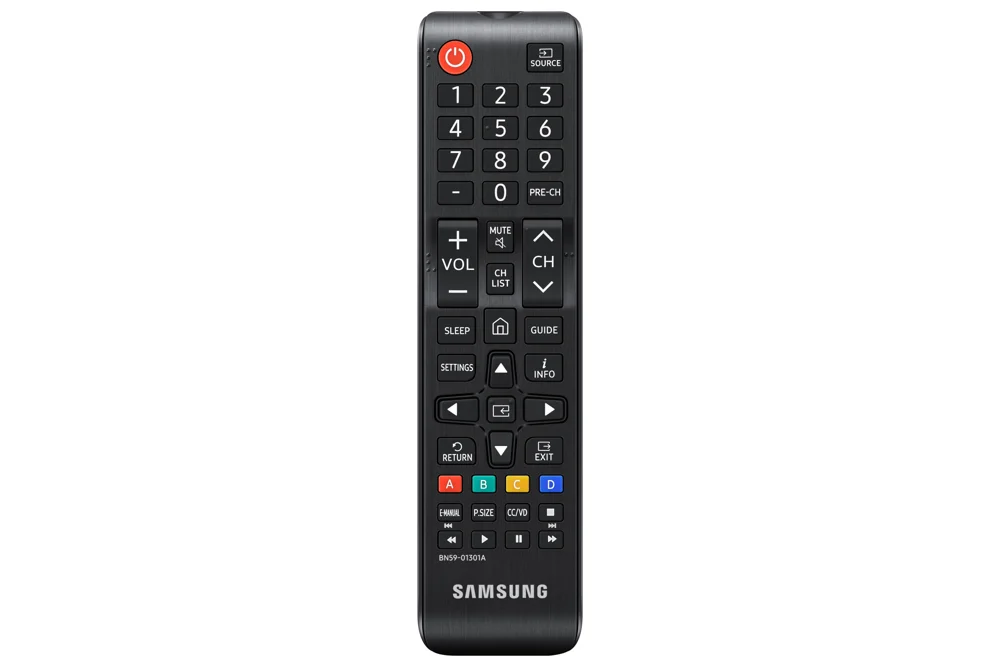 Find a compatible remote
 Understand Alexa TV controls