Match the app to the device.
- Roku
- The Roku app controls compatible Roku TVs and streaming players. Connect the phone and Roku to the same Wi-Fi network and select the discovered device.
- Amazon Fire TV
- Use Amazon's Fire TV app, sign in and follow the setup prompt on the same Wi-Fi network. It controls the selected Fire TV device, which may be attached to another brand's television.
- Google TV or Google Home
- Google documents a phone remote for Chromecast with Google TV and Google TV Streamer. Pair the supported device using the on-screen code. Compatibility with built-in TV platforms should be checked by model.
- Samsung SmartThings
- Add a compatible Samsung TV in SmartThings and complete the on-screen approval or PIN process. Open its TV tile to reach the remote controls.
- LG ThinQ
- Sign into ThinQ, add the compatible LG TV and follow its pairing prompts. Available controls and the ability to wake the TV depend on the model and settings.
Set up the remote while the TV is accessible.
Identify what you want to control
Read the TV platform in its settings and identify any separate streamer. A TCL television, for example, may use a different platform from another TCL model. If you watch through a Fire TV stick, the Fire TV app targets that stick rather than automatically replacing every control on the display.
Install the official app
Use the app store listing published by the platform or TV manufacturer. Check the publisher name before installing a similarly named third-party remote. Review any permissions requested for finding local devices. App availability and supported phone versions can change, so use the current store requirements.
Connect both devices to the home network
Turn the TV or streamer on and connect it to the same local network as the phone. Guest Wi-Fi or device isolation can prevent discovery even when both devices have internet access. Follow any model-specific setup requirement, such as LG's guidance to use the same 2.4GHz network during ThinQ setup.
Pair with the device you can see
Select the correct TV or streamer in the app and complete the code or approval shown on that screen. Do not approve an unfamiliar device. Keep the physical remote or TV controls available until pairing and basic navigation work. Some first-time approvals cannot be completed from an unpaired app.
Test navigation, text entry and wake behavior
Try Home, directional controls and a search field, then check playback in the app you use. Test power and volume separately. A working navigation remote does not guarantee that the phone can wake a sleeping television or adjust an external audio system. Keep a suitable physical fallback.
Find the symptom. Check the cause.
The TV does not appear
Confirm the TV is on, both devices use the same network and local-network permissions are allowed. Temporarily check without a phone VPN if it blocks local discovery. Review the platform's mobile-control setting rather than repeatedly installing unrelated apps.
Pairing asks for an on-screen code
Enter the code displayed by the television you selected. If no code appears, check that you chose the correct device and that its input is visible. An app cannot skip a required first-time approval simply because the original remote is missing.
Navigation works but power or volume does not
Those controls depend on the TV, streamer, standby configuration and audio setup. Check the model's mobile wake settings and any supported equipment-control feature. Do not assume that success inside a streaming app proves full control of the connected screen.
An app is useful, but setup still matters.
The official app is the sensible starting point for its own platform. Compare whether you need text entry, navigation, playback or TV power rather than looking for a single universal winner. A household using a streamer and a separate sound system may still need more than one control route.
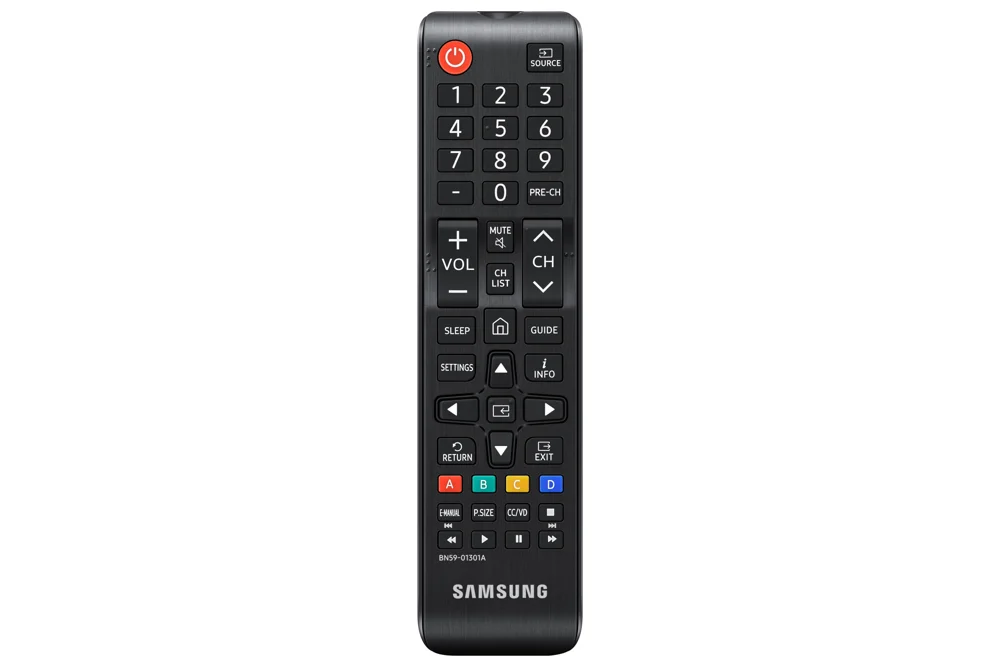
If a TV has lost its Wi-Fi connection and you cannot reach its menus, installing a new network remote may not solve the problem. An already paired app, accessible TV controls or a compatible physical remote may be needed first. Our Samsung remote comparison is useful when a physical replacement is the missing piece.
Checks that make this work.
Match the app to the TV platform
A phone remote is useful only when it supports the actual TV or streaming device. Check the official app, compatible model list and account requirements before installing. Roku, Google TV and LG each have their own setup route. A generic app that promises every brand may request broad permissions without providing reliable controls. Start with the platform maker's published app and read its privacy information. The phone and device commonly need the same local network for discovery, but check the maker's exact setup method. A Bluetooth connection by itself is not a universal substitute for that route.
Keep a fallback for setup problems
A phone app may not help if the TV has not yet joined Wi-Fi, the network is down or the device is at a sign-in screen that requires its original remote. Keep the physical remote or learn the TV's built-in buttons where available. Give each TV a clear name when several devices are on the network. If an app discovers the wrong device, check network isolation and the account before resetting the television. The Roku app instructions, Google's remote setup guidance and LG ThinQ guide describe different supported routes. Use the one for the device you own.
Model-aware instructions.
This guide is based on manufacturer and platform support material reviewed on November 4, 2026. We distinguish common steps from model-specific requirements and link relevant official guidance in the FAQs.
Menu names, app interfaces and supported features can change. Use the manual for your exact model when it differs from a general procedure. This is researched guidance, not a claim that we tested every television, app or accessory described.
A little more clarity.
Can one remote app control every television?
No. Compatibility follows the TV or streaming platform, the network connection and the supported controls. The official Roku app is intended for Roku devices, for example. A phone app cannot add infrared hardware to a phone or make an older television accept network commands it does not support.
Does the Roku remote app cost money?
Roku describes its official remote app as free for iOS and Android. Paid streaming subscriptions are separate from the remote function. Check the publisher before installing, and use Roku's official installation guide to confirm device compatibility and connection requirements.
Can I use my phone with a Chromecast?
Google documents remote controls for Chromecast with Google TV and Google TV Streamer through supported Google apps. That does not mean every older cast-only Chromecast has the same remote interface. Check Google's phone remote instructions against the device you own.
Why does the app fail on guest Wi-Fi?
Guest networks can prevent devices from communicating with one another even when each has internet access. Use the same trusted home network and check local-network permissions. If discovery still fails, follow the platform's connection guidance instead of enabling broad external access as a shortcut.
Can LG ThinQ turn the TV on?
LG says wake support depends on the webOS generation and relevant mobile-on settings. Older versions may support power-off only, and phone platforms can differ. Follow LG's ThinQ setup guidance for your model before relying on the app as your only remote.
Can I pair a remote app after losing the physical remote?
Sometimes, particularly if the TV is already connected and the app was previously paired. A first-time pairing may still require an on-screen code or approval, and a disconnected TV may need its network configured first. Check accessible TV controls or obtain a compatible physical remote if that step is blocked.
 Troubleshoot a Samsung TV
 Try compatible voice controls
 Compare physical remotes